# Admin Groups & Data Access Rules

Admin Groups and Data Access Rules give you granular control over what data each administrator can see and edit. Instead of every admin having identical access to all records, you can tailor permissions to match your team structure, operational boundaries, and security requirements.

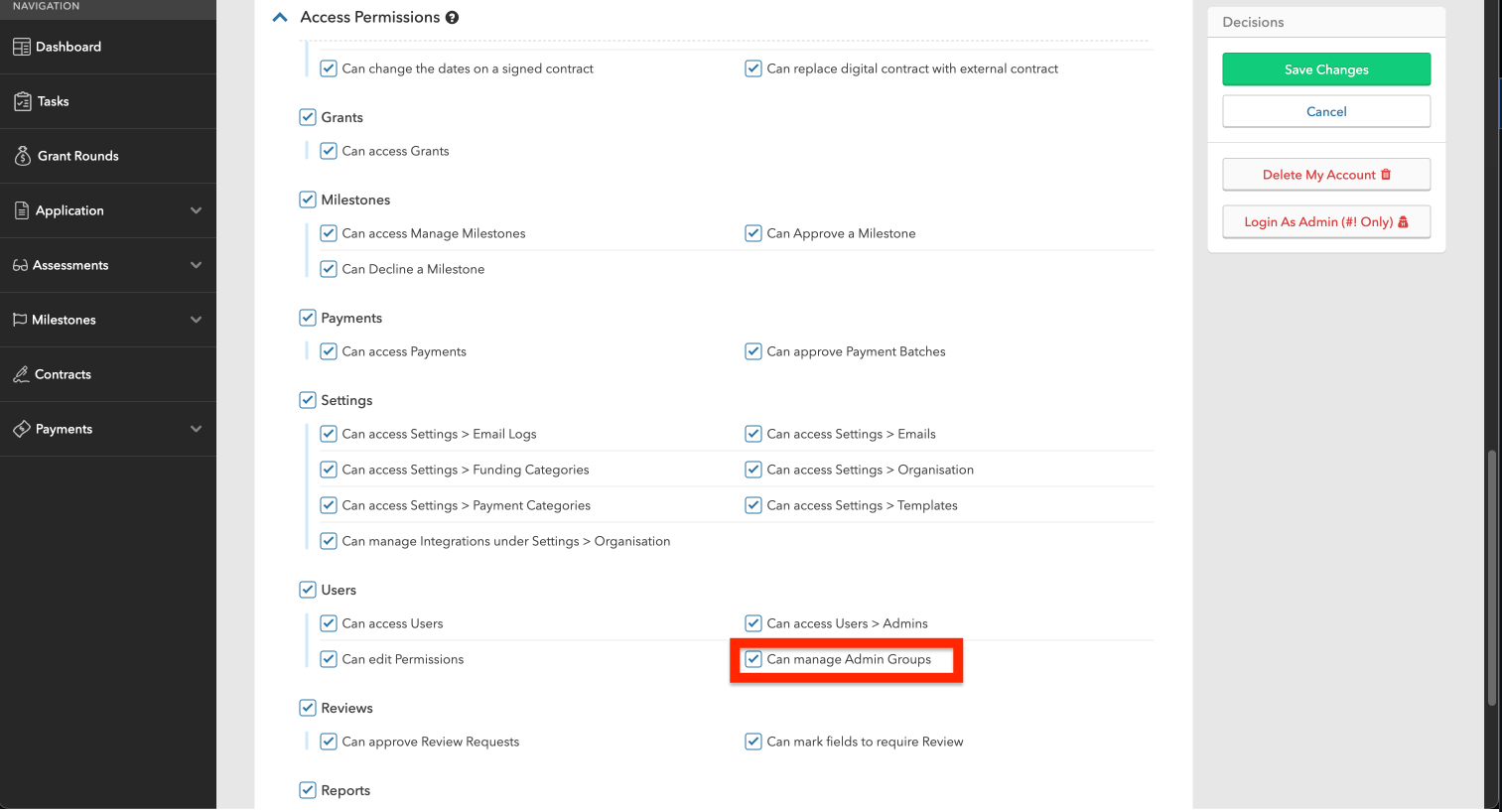
Access to this feature is tightly governed. The ability to create, view, and modify Admin Groups is controlled by a dedicated permission - **"Can manage Admin Groups"** - which is off by default. Until this permission is explicitly granted, the Admin Groups interface is not visible. This means your organisation decides who can configure access, and everyone else simply operates within the access they've been given.

### Admin Groups

An Admin Group is a collection of administrators who share the same level of access. You'll find them under **Users > Admin Groups**.

<figure><img src="https://4124979405-files.gitbook.io/~/files/v0/b/gitbook-x-prod.appspot.com/o/spaces%2F49pNEQ4fXNtxv0yJ5jgn%2Fuploads%2Fgit-blob-d93c885fa896b6ac7d5c5449af0880580e878d7c%2Fadmin-groups-index.png?alt=media" alt=""><figcaption><p>The Admin Groups list under Users > Admin Groups</p></figcaption></figure>

Each group has:

* **Members** - the admin users who belong to the group
* **One or more Data Access Rules** - the rules that define what those members can see and do

An admin can belong to multiple groups. When they do, the system combines all their rules and grants the **highest level of access** found for each record type ( more details below ). This means adding someone to a group can only maintain or increase their access, it never reduces it.

### Data Access Rules

A Data Access Rule is attached to an Admin Group and defines two things: **what level of access** the group has to each record type, and **which records** that access applies to.

For each record type, a rule specifies one of three levels:

| Access Level    | What It Means                        |
| --------------- | ------------------------------------ |
| **Full Access** | View and edit records                |
| **Read Only**   | View records but cannot make changes |
| **No Access**   | Records are hidden entirely          |

<figure><img src="https://4124979405-files.gitbook.io/~/files/v0/b/gitbook-x-prod.appspot.com/o/spaces%2F49pNEQ4fXNtxv0yJ5jgn%2Fuploads%2Fgit-blob-9e55686e4005fdc83459f258b2e8f91a0e20fc9a%2Fadmin-groups-access-levels.png?alt=media" alt=""><figcaption><p>Setting access levels for each record type using the dropdowns</p></figcaption></figure>

### Record types

The following record types can be controlled:

| Record Type       | What It Covers                                       |
| ----------------- | ---------------------------------------------------- |
| Applicants        | Applicant and provider profiles                      |
| Funding Rounds    | Funding programmes and their settings                |
| Applications      | Funding applications submitted by applicants         |
| Assessments       | Assessment reviews of applications                   |
| Conditions        | Conditions placed on approved applications           |
| Milestones        | Contract and application milestones and deliverables |
| Contracts         | Funding contracts                                    |
| Payments          | Payment records and batches                          |
| Internal Comments | Admin-only comments on records                       |

### Criteria (scope)

Each rule also defines **which records** the access levels apply to:

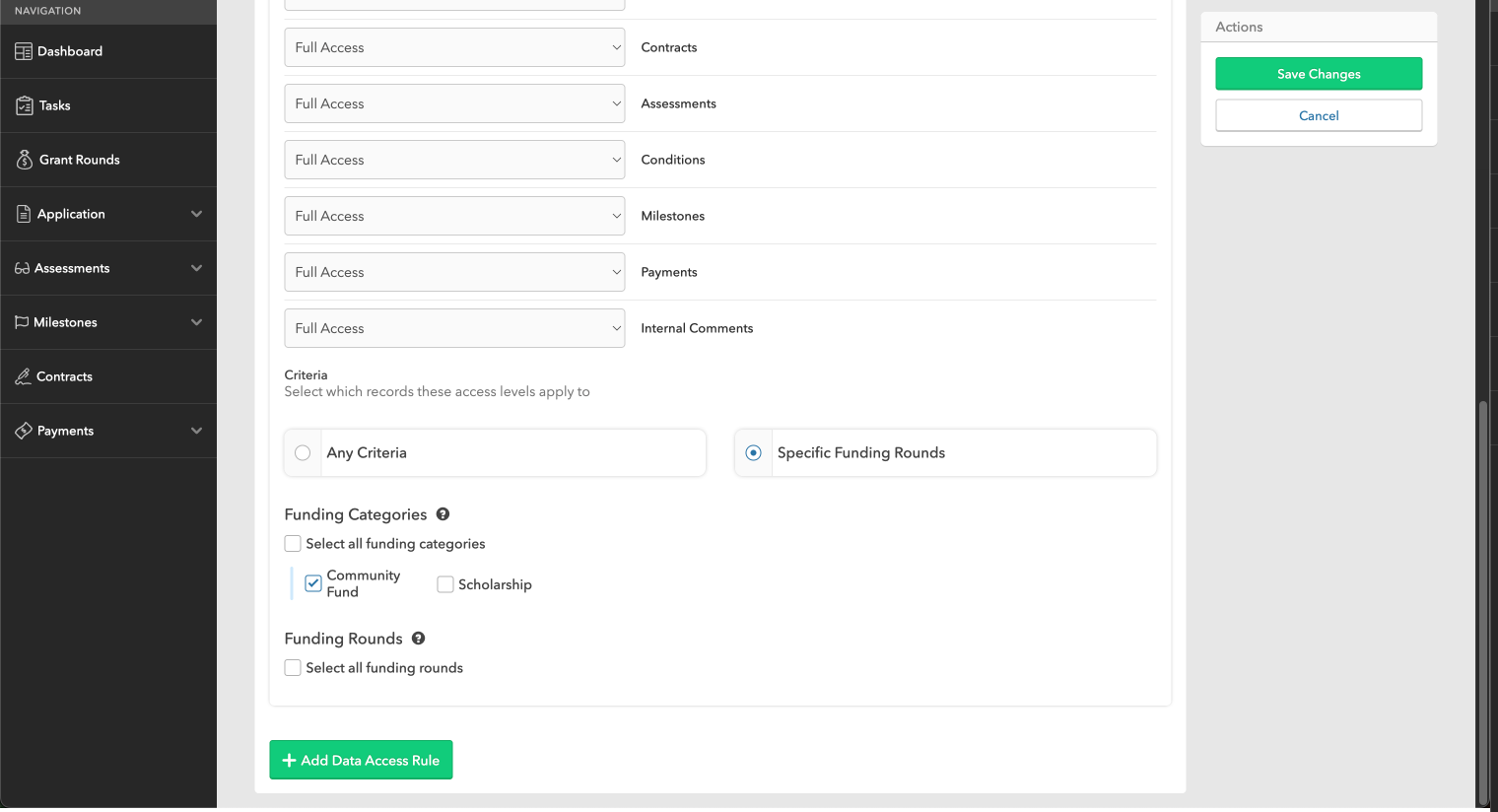
* **Any Criteria** - the access levels apply to all records across the entire organisation. Use this for senior administrators, system administrators, or finance teams who need visibility of everything.
* **Specific Funding Rounds** - the access levels apply only to records linked to selected funding rounds or funding categories. Use this for programme managers, regional teams, or anyone who should only see specific programmes.

  When using specific criteria, you can select:

  * **Individual funding rounds** - e.g. "2025 Community Fund Round 1"
  * **Funding categories** - e.g. "Youth Programmes" (automatically includes all rounds in that category, including any future rounds added to it)
  * **A combination of both**

<figure><img src="https://4124979405-files.gitbook.io/~/files/v0/b/gitbook-x-prod.appspot.com/o/spaces%2F49pNEQ4fXNtxv0yJ5jgn%2Fuploads%2Fgit-blob-96836381c97fcbcb50e9d32b25951ca2e72dc24e%2Fadmin-groups-criteria-scope.png?alt=media" alt=""><figcaption><p>Choosing Specific Funding Rounds criteria with funding categories and individual rounds</p></figcaption></figure>

### The Default Group

Every organisation has a **Default Group**. This group:

* Automatically includes all current administrators
* Automatically adds any new administrators when they are created
* Cannot have members manually removed

The Default Group establishes a baseline level of access that every admin receives. Out of the box, it comes with an unrestricted Data Access Rule (Full Access to all record types with Any Criteria), so all admins start with the same access they had before this feature was introduced.

You can adjust the Default Group's Data Access Rule to set a different baseline - for example, Read Only across the board - and then use additional groups to grant higher access where needed.

### Governance & the "Can manage Admin Groups" Permission

The entire Admin Groups feature is gated behind a single permission: **"Can manage Admin Groups"**. This permission is **disabled by default** for all roles, and it controls everything - creating groups, viewing group membership, editing Data Access Rules, and deleting groups.

This design is deliberate. The administrators who decide *who can see what* should be a small, trusted group - typically system administrators or team leads responsible for access governance. Granting this permission broadly would undermine the purpose of having controlled access in the first place.

<figure><img src="https://4124979405-files.gitbook.io/~/files/v0/b/gitbook-x-prod.appspot.com/o/spaces%2F49pNEQ4fXNtxv0yJ5jgn%2Fuploads%2Fgit-blob-f4a3e4f9418766f9146e5287486d2971c4eb153d%2Fadmin-groups-manage-permission.png?alt=media" alt=""><figcaption><p>The "Can manage Admin Groups" permission on the administrator permissions form</p></figcaption></figure>

### How Permissions Stack

When an admin belongs to multiple groups, the system evaluates all their Data Access Rules and grants the **highest access level** found for each record type.

**Example:** An admin belongs to two groups:

* Group A grants **Read Only** to Applications
* Group B grants **Full Access** to Applications

The admin receives **Full Access** to Applications (the higher of the two).

The priority order is: **Full Access > Read Only > No Access**.

Because the model is additive, the only way to reduce an admin's access is to remove them from a group or change that group's Data Access Rule.

### Setting Up Access

#### Step 1: Plan your groups

Think about which teams or roles in your organisation need different levels of access. Common groupings include:

* By programme (e.g. Youth Grants Team, Arts Funding Team)
* By function (e.g. Programme Managers, Finance, Auditors)
* By seniority (e.g. Senior Admins with full access, Junior Admins with read-only)

#### Step 2: Create a group

1. Go to **Users > Admin Groups**
2. Click **Add Group**
3. Enter a name for the group
4. Select the admin members

<figure><img src="https://4124979405-files.gitbook.io/~/files/v0/b/gitbook-x-prod.appspot.com/o/spaces%2F49pNEQ4fXNtxv0yJ5jgn%2Fuploads%2Fgit-blob-8773aa852b0fe96b39256cac5434a7f5dd3e675f%2Fadmin-groups-create-form.png?alt=media" alt=""><figcaption><p>The admin group form showing name, members, and Data Access Rules sections</p></figcaption></figure>

#### Step 3: Add Data Access Rules

Each group needs at least one Data Access Rule. On the group form:

1. Under **Data Access Rules**, set the access level for each record type using the dropdown (Full Access, Read Only, or No Access)
2. Choose the criteria:
   * Select **Any Criteria** if the rule should apply to all records
   * Select **Specific Funding Rounds** to restrict to particular rounds or categories, then tick the relevant funding categories and/or individual funding rounds
3. To add additional rules to the same group, click **Add Data Access Rule** and configure it

#### Step 4: Review the Default Group

Decide what baseline access every admin should have. If the out-of-the-box unrestricted access is appropriate, no changes are needed. If you want a more restrictive baseline, edit the Default Group's Data Access Rule.

### Common Configurations

#### Unrestricted admin

For admins who need full access to everything - the same experience as before this feature was introduced.

* **Criteria:** Any Criteria
* **Access:** Full Access to all record types

#### Programme-specific team

For teams who manage a specific funding programme and should only see records related to their programme.

* **Criteria:** Specific Funding Rounds -- select the relevant funding category or individual rounds
* **Access:** Full Access to the record types they work with (e.g. Rounds, Applications, Contracts, Payments)

#### Read-only auditor

For external auditors or observers who need to review data without making changes.

* **Criteria:** Any Criteria
* **Access:** Read Only to all record types

#### Separation of duties

For organisations that want to separate who manages applications from who manages payments.

**Programme Managers group:**

* **Criteria:** Any Criteria
* **Access:** Full Access to Rounds, Applications, Assessments. No Access to Payments, Contracts

**Finance group:**

* **Criteria:** Any Criteria
* **Access:** Read Only to Applications (for context). Full Access to Contracts, Payments

#### Restricted baseline with promoted access

For organisations that want new admins to start with limited access and gain more as they are trained.

**Default Group (all admins):**

* **Criteria:** Any Criteria
* **Access:** Read Only to Rounds and Applications. No Access to everything else

**Experienced Staff group:**

* **Criteria:** Any Criteria
* **Access:** Full Access to all record types

New admins automatically get read-only access through the Default Group. Once trained, adding them to the Experienced Staff group gives them full access.

### Things to Know

* **Changes take effect immediately.** When you update a group's membership or Data Access Rules, the changes apply on the admin's next page load. No restart or waiting period is required.
* **Funding categories are forward-looking.** When you scope a rule to a funding category, any new funding round added to that category in the future is automatically covered. You don't need to update the rule each time a new round is created.
* **No disruption for existing users.** The Default Group with unrestricted access means all existing admins continue to see and do everything they could before. Access only changes when you deliberately configure it.
* **Audit-friendly.** The group structure gives you a clear, reviewable record of who has access to what, supporting compliance and governance requirements.