> For the complete documentation index, see [llms.txt](https://help.tahua.io/llms.txt). Markdown versions of documentation pages are available by appending `.md` to page URLs; this page is available as [Markdown](https://help.tahua.io/knowledge-base/administrator-help-guides/contracts/signing-a-contract.md).
# Signing a Contract
This page details how Applicants, Verifiers/Institutions and Admins go about signing a contract, after it has been sent.
When an Organisation sends out a contract for signing, it goes to the Counterparty (the organisation or person the contract is with) and/or Verifier/Institution first, and then once these assigned signatories have signed the contract, it will go back to the assigned Admin from the Organisation for counter-signing.
When the Admin from the Organisation hits "Send Contract", the contract signatories (the Counterparty and/or the Verifier/Institution) will receive an email to advise them that there is a contract ready to sign. The content of this email can be set in the Organisations Email Templates (note that there are separate templates for Applicants, Verifiers/Institutions, and Admin - so it is best to review all these email templates prior to sending your first contract out).
Organisation Email Templates
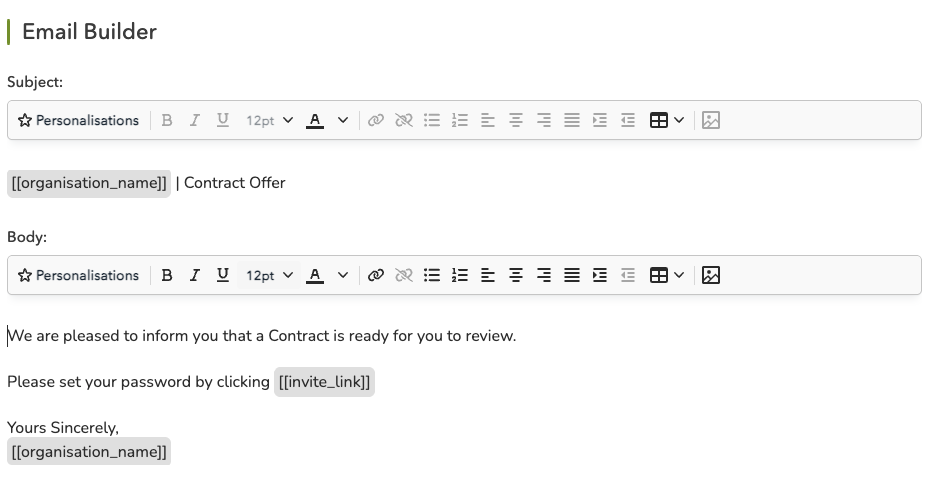
Default "Contract Offer" Email Template
You'll see that from the "Contract Offer" default email, recipients of the email are encouraged to log into the Portal. If they don't yet have an active account in the Portal, but have previously been invited, they will receive the "New Applicant Contract Offer" or the "New Verifier/Institution Contract Offer" email, which will contain the original invite link for them to go through the sign-up process, after which they will be able to sign the contract.\*
Default New Applicant/New Verifier Email Template
Once the signatory logs into their Tahua account, they'll see a red "bell notification" at the top of their screen. If they click on this, it will take them through to the contract awaiting review. Alternatively, the recipient can click "Contracts" down the left-hand side of their dashboard, and they'll see a list of the contracts awaiting review here.
Once the signatories from the Verifier/Institution and/or Counterparty have signed the contract, the assigned Admin signatory will receive an email advising them that this has been completed, and prompting them to sign the contract on their end.